
Applying fade effects with Fireworks
I wrote this post a while back. The content can still be relevant but the information I've linked to may not be available.
Macromedia Fireworks (now part of Adobe) is a sometimes underrated programme but we think it’s great for creating sliced web layouts and for image manipulation. One of the tools available is a quick and easy way to apply fade effects to a bitmap image or image object.
Fade effects are often used for ‘softening’ the edges of photos or for ‘blending’ an image object into another image object. It’s quite a useful tool but Fireworks hides the tool in a not-so-obvious place [the ‘Commands’ menu for some reason]. It took me several weeks to find it when I first used Fireworks!
Here’s how it works…
Open an image (eg a photo .jpg image) in Fireworks †. You will find that the bitmap part of the image is already selected (as shown by a blue square with rectangles at the corners). Alternatively, use the pointer tool to select an image object in an existing, already opened, Fireworks (.png) image.
Click on Commands – Creative – Fade Image. A dialogue box with eight pre-set fade effects appears. Choose the fade effect you want and click OK. The fade effect is applied to your selected bitmap or image object. It can be manipulated with the control bar that appears (a black line with a circle and square at either end). Moving the control bar will change the fade effect (for example, shorten the fade and change the fade direction).
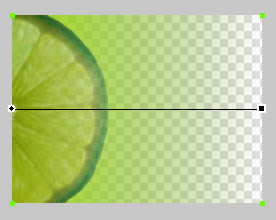
Above: Fireworks screenshot after fade effect applied.
Save/export the image as a .jpg and you’re done. Save the image as a Fireworks .png file if you want to re-edit the fade effect later (the fade effect can be selected in the Layers panel).
There are only eight pre-set fade effects but we have found that they cover most of our requirements in this area. Of course, it’s possible to apply additional effects to your image using Fireworks’ other tools.
Further Reading: Why Choose Fireworks is a great article in praise of Fireworks.
† This article is written for Fireworks 8 but the same tools are available in Fireworks MX or greater.
Comments
25 Feb 2006 00:07:28
Nice!
The reason why you found this particular panel in the commands menu is its an extension to Fireworks. Flash Designers can tap into the API and create panels with ease for others to benefit from as you found out. If you are curious to know how this is done you should check out Trevors article at:
Creating Fireworks Panels – Part 1: Introduction to Custom Panels
20 Jan 2010 21:11:01
Thanks for the perfect tutorial.. didn’t even know about the fade image command!
Comments are OFF for this post.